Final Image 3 P5


Scan

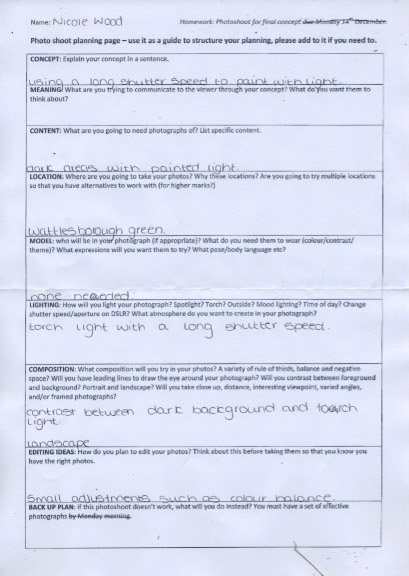
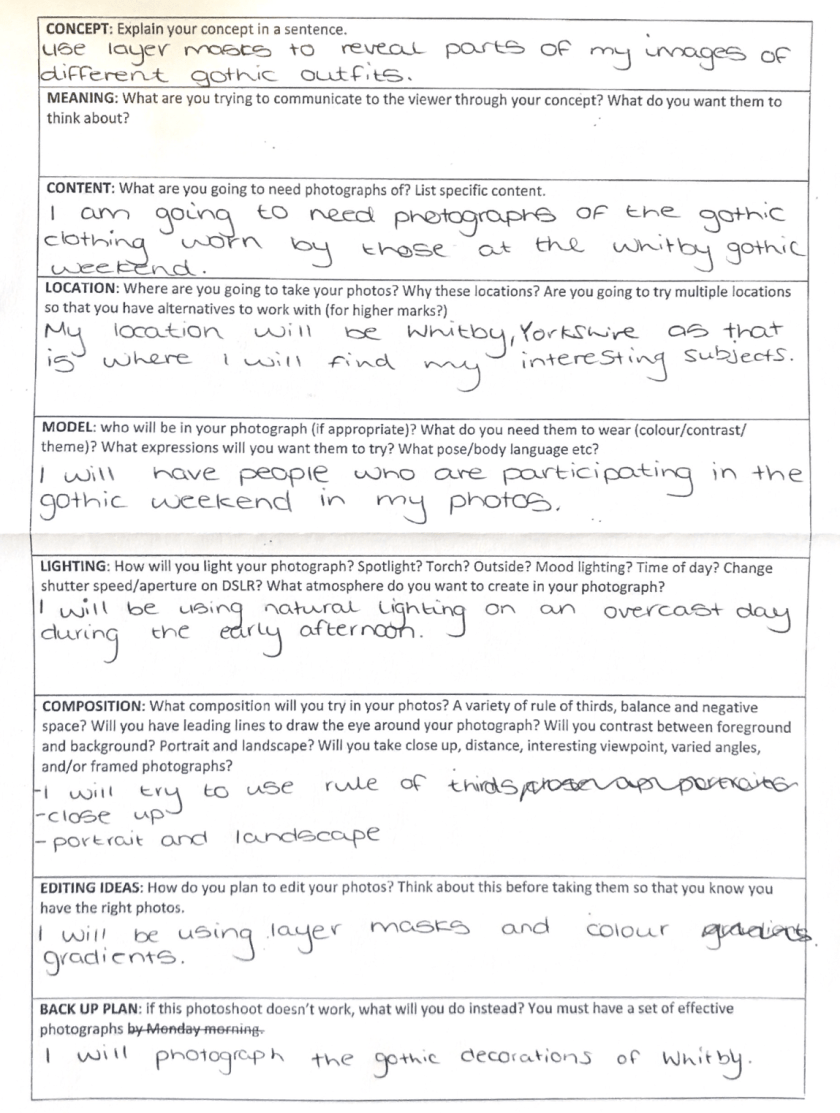
This was my planning for my third shoot.

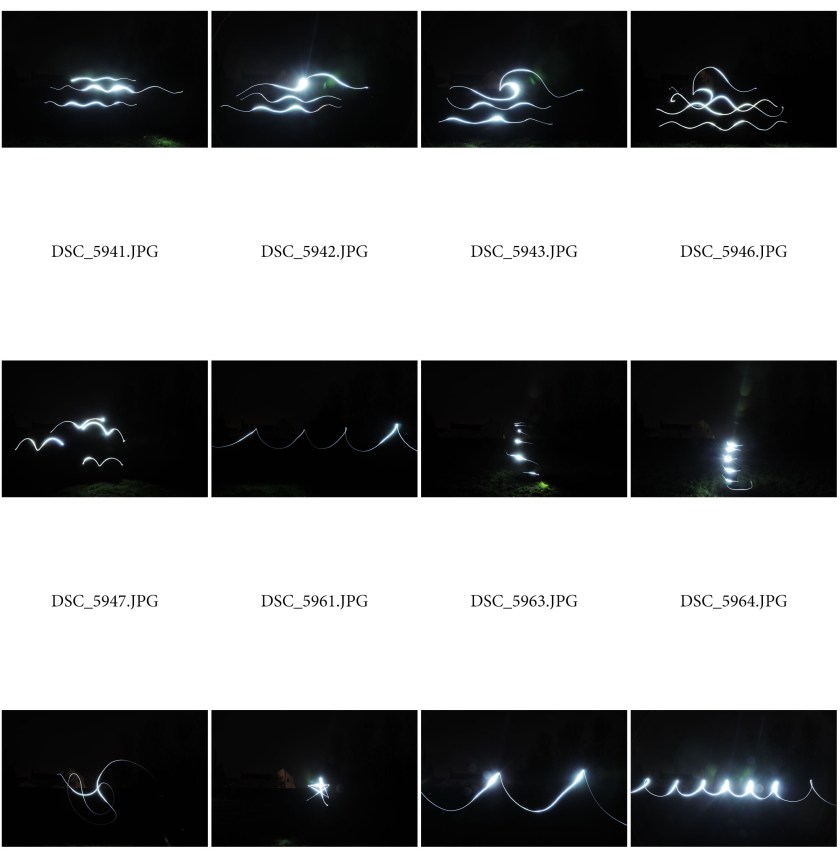
ContactSheet-001


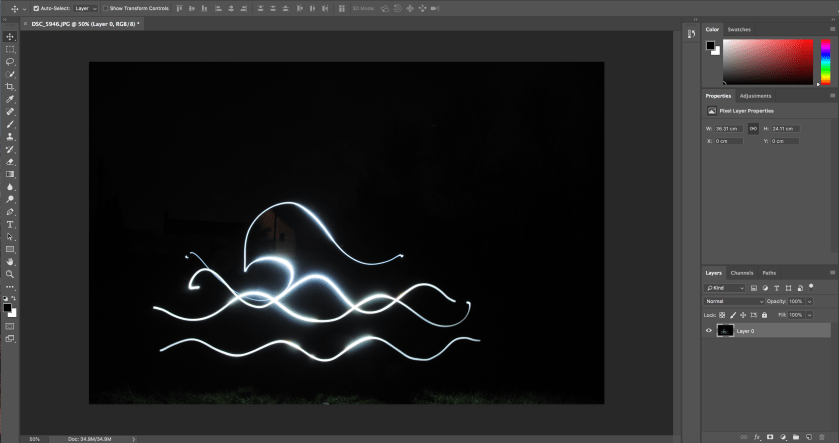
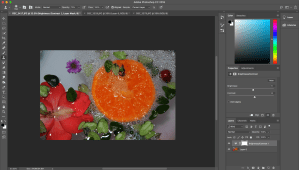
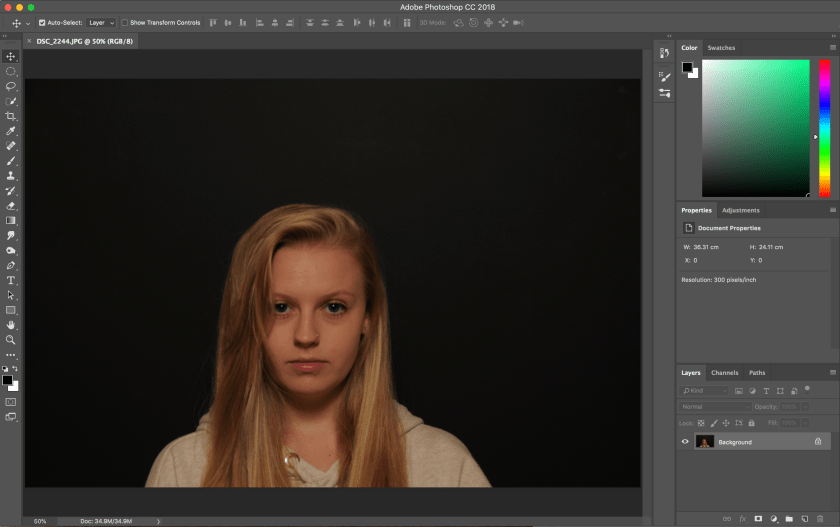
Firstly, I selected my best photo and opened it on photoshop.

Screen Shot 2018-11-30 at 15.12.09


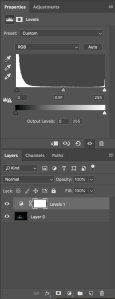
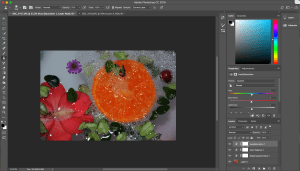
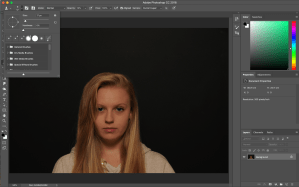
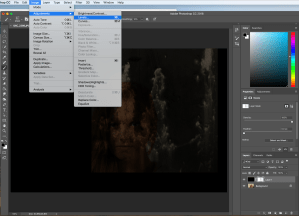
Secondly, I selected the levels adjustment in order to lighten and darken areas of the image.

Screen Shot 2018-11-30 at 15.12.54

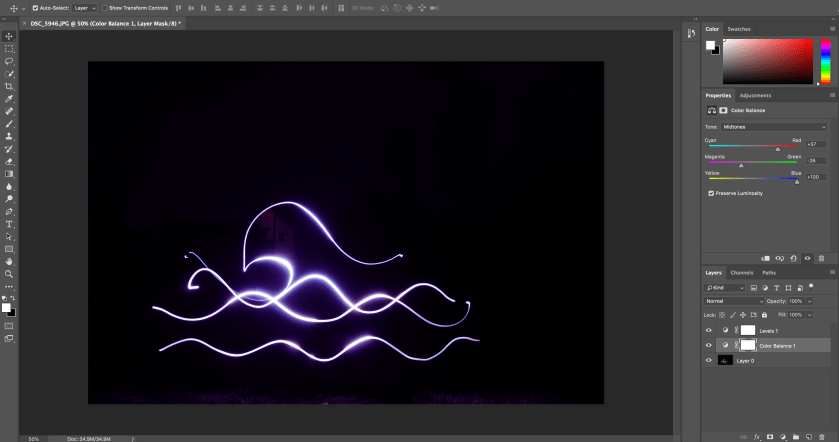
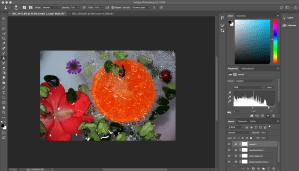
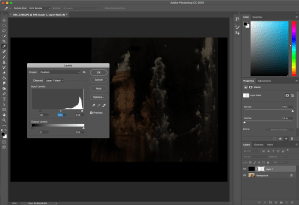
Finally, I used the colour balance adjustment to add a different tone to the light.

Screen Shot 2018-11-30 at 15.29.53

This is my third and final image, against the original:


This was taken using a shutter speed of thirty seconds in a darkened environment.

The image takes the appearance of neon lighting suspended in mid-air. I like the vibrant colouring of this edit, which links the image to the theme of colour and shape, this links to the shape which resembles that of a wave.

Final Image 2 P5

7cfac194-f146-44d9-891f-e0fd9cf92833.png

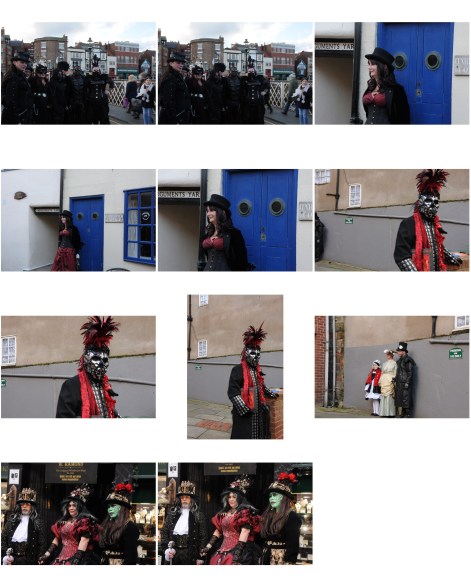
After planning my shoot, I collected the necessary items to complete it and took a range of photos to form a contact sheet; from this I selected my best image and proceeded to edit it.

ContactSheet-001

To begin editing I opened the image I wanted to edit in photoshop. I chose this image because it was one of the most interesting with links to the theme of colour and shape.

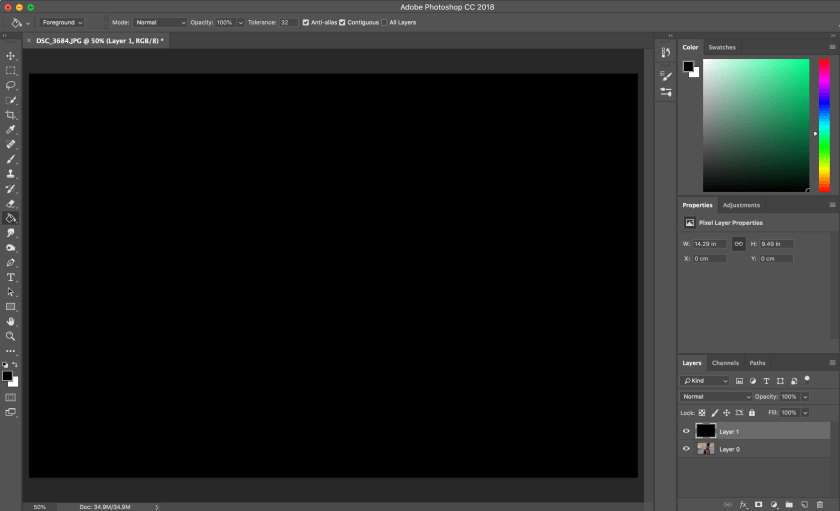
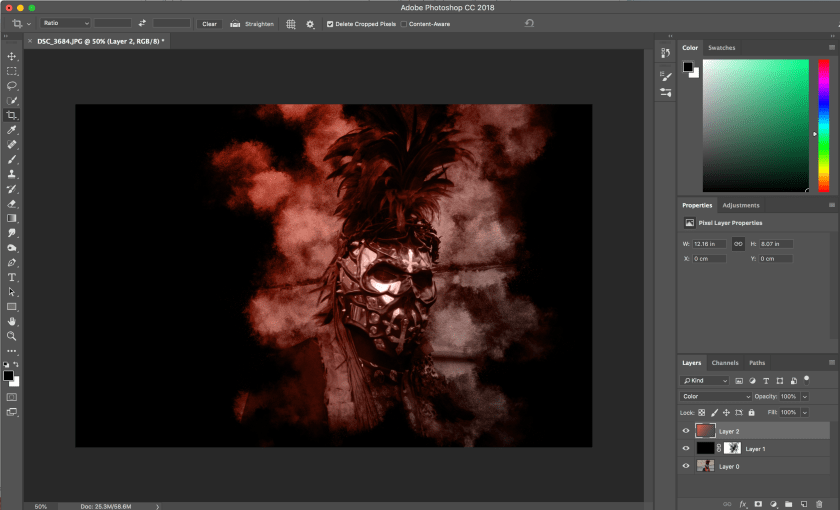
Following this, I created I new layer, set the foreground colour to black and used the paint bucket tool to drop the colour black on the new layer, by doing this the new layer is no longer transparent.

Screen Shot 2018-11-05 at 13.51.38

I then created a layer mask, whilst the new layer is selected. This allowed me to then remove parts of the layer to reveal the image underneath. To reveal the image I used a paintbrush I had made using the original image to select the areas I wanted shown.

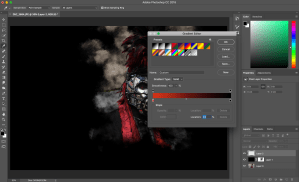
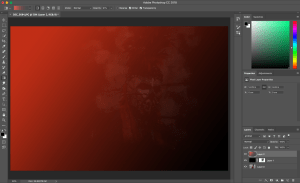
To add the colour I wanted to my image I created a new layer, selected a colour gradient, chose the gradient I wanted, and then changed the blend mode from ‘normal’ to ‘colour’. This was so that the colour did not cover the image.

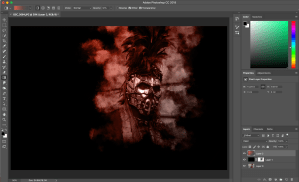
I then cropped the image to isolate the area I wanted to be the main focus.

Screen Shot 2018-11-05 at 13.59.09

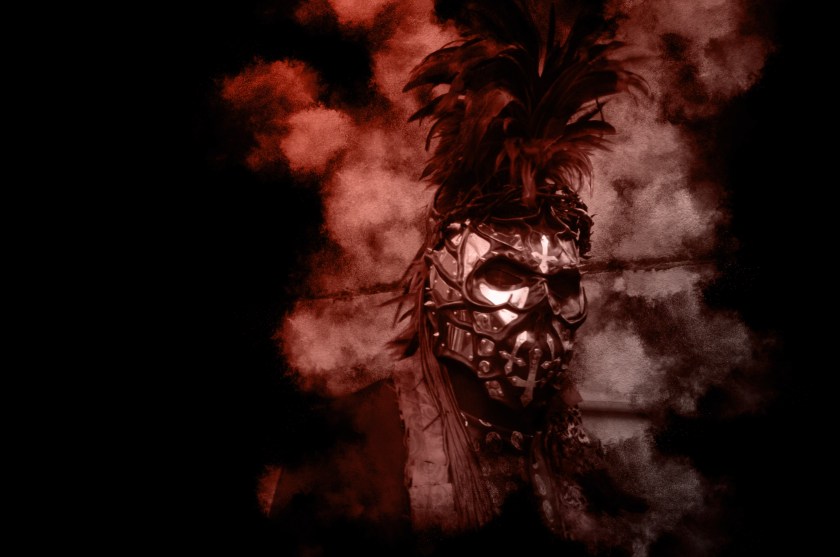
This is my final image:

DSC_3684jj

I chose this image as one of my final image due to the numerous shapes of head piece of the subject of the photo. The gradient colour over the image creates a link to the theme of colour.

This image was taken in Whitby, Yorkshire during the annual Goth Week during the week of halloween.

Final Image 1 P5

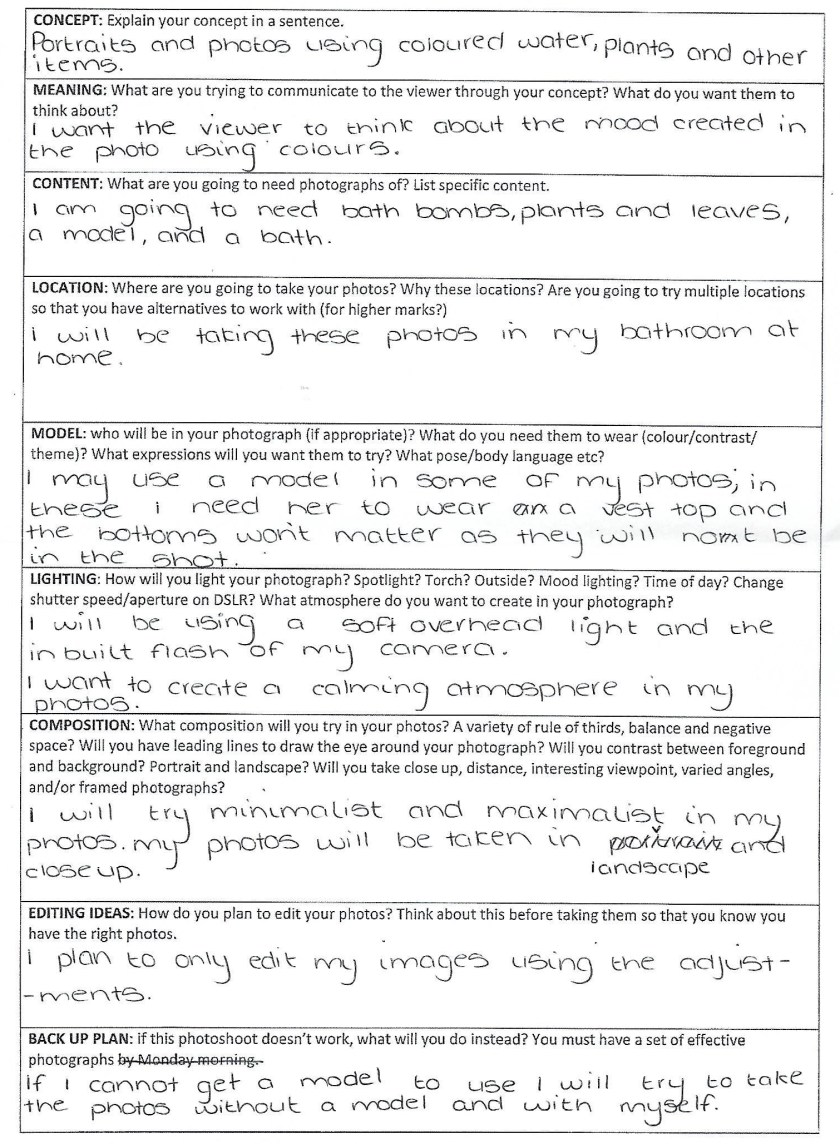
The following item is my planning sheet towards this final image:

Scan_0007

After gathering the correct items that I would need, I set up my shoot and took my photos to then create some contact sheets. The settings I used were a shutter speed of 30, an ISO of 320, and F.4.5. From these sheets I selected the final image that I want to edit.

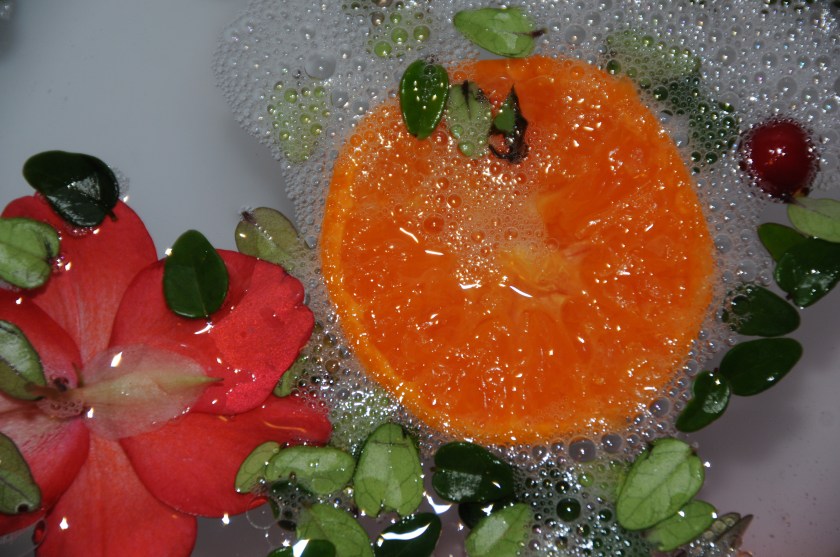
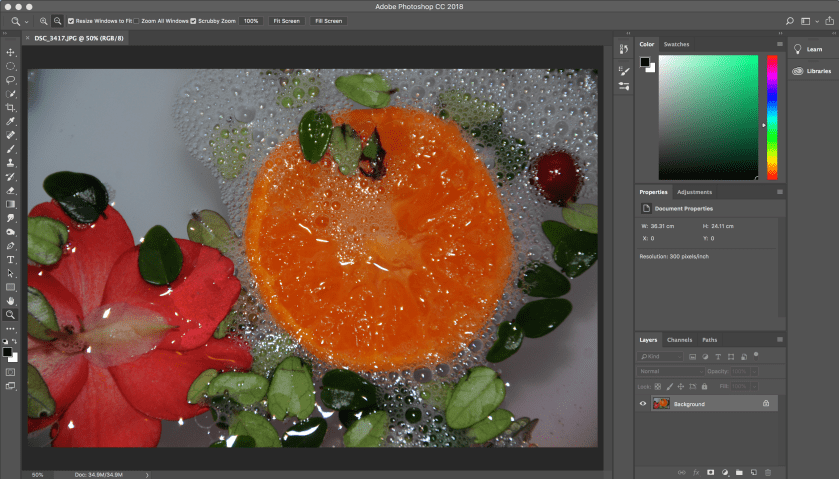
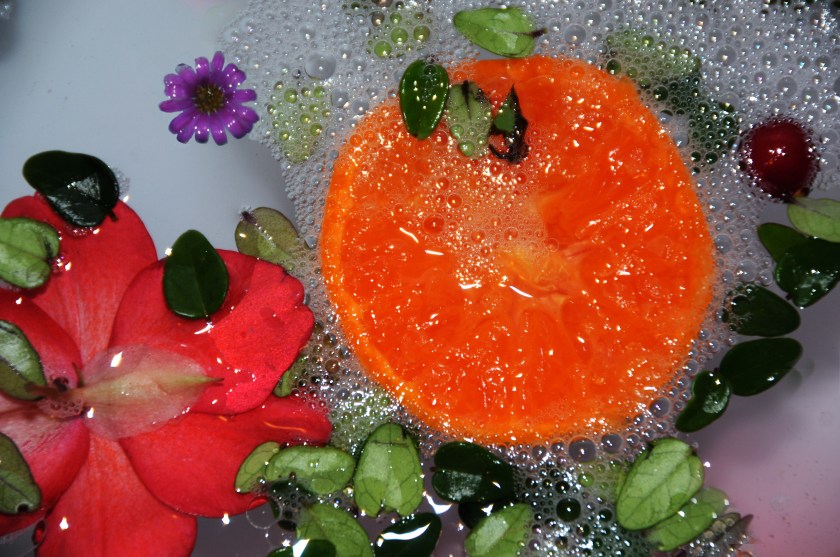
I chose the following image to edit: I liked this image as it had a large amount of colour in it due to the orange and it was well composed, focused and exposed.

DSC_3417

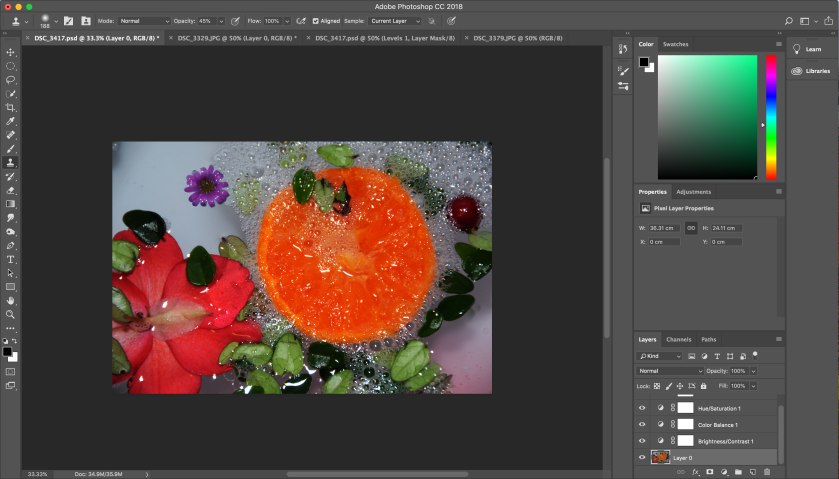
I did not drastically change the image through editing as I only wanted to adjust it. to begin I opened the photo in photoshop, and removed the lock button on the layer.

1.png

Secondly, I opened another one of my images in photoshop and used the clone stamp tool copy a flower from one onto the other to fill part of the space left bare in the top left corner.

To neaten up the edges of the flower I copied into the image, I used the clone stamp tool again in a much smaller size to fill in the gaps between the leaves. This allowed the edit to look much more realistic.

I then slightly adjusted the brightness/contrast of the photo, followed by the colour balance, hue/saturation, and levels.

To finalise the image I deepened the shades of pink in the bottom right corner using the burn tool. This was to add a more subtle colour to the water.

9.png

This is my final image:

DSC_34172

I have chosen this as one of my final images as it showcases the main points of the unit brief: colour and shape. I find this final image to be my strongest and most liked edit.

The bursts of colour made for a vibrant and pronounced image. Also, the natural curved shapes in the photo add interest to the photo with a link to nature.

The inspiration for this final image came from Maisie Cousins.

Artist Research 2

Alma Haser

The Eureka Effect Series

Alma_Haser_The_Eureka_Effect_2

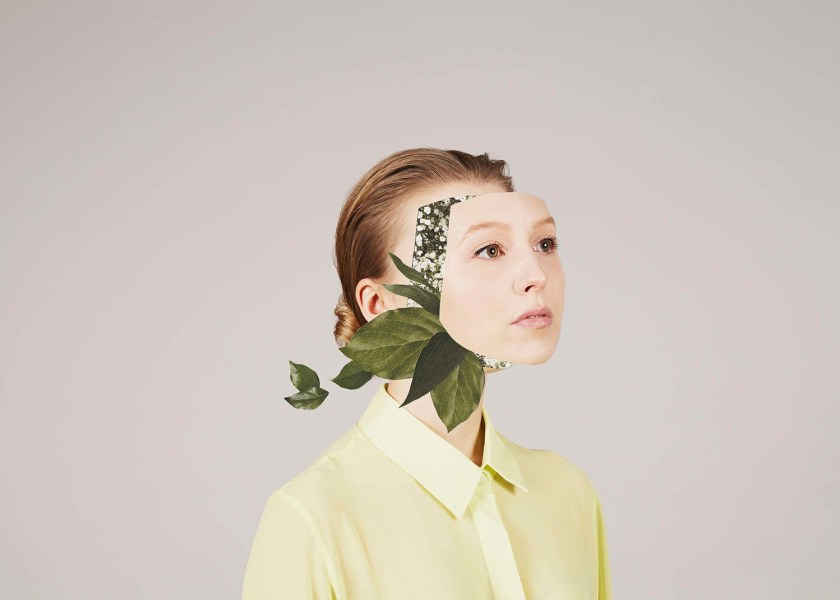
Haser expands the dimensions of traditional portrait photography by carefully constructing creative portraiture using digital manipulation. The artist has made the face appear to be removed from the head of the model, with leaves coming out of the gap created.

Haser uses high key lighting to brighten the face of her models, and uses vibrant colours in the clothes of the model and the areas that has been edited.

Haser’s portraiture stand out against others work due to her surrealist approach to her work. The meaning behind this series was how We forget things and often remember them again when we enter a dream like state. When asked Haser stated: “In The Eureka Effect I explore this idea: the here and there of a brainstorming mind. I use flowers and foliage to represent the new growth of an idea, which seeps its way out of the subjects, as if they were just coming across a ‘Eureka moment’.”

Artist Research 1

Nick Knight

‘Blade of Light’

2004

mcqueen_dance_compf12cmy_v4_1100x0.1100x0

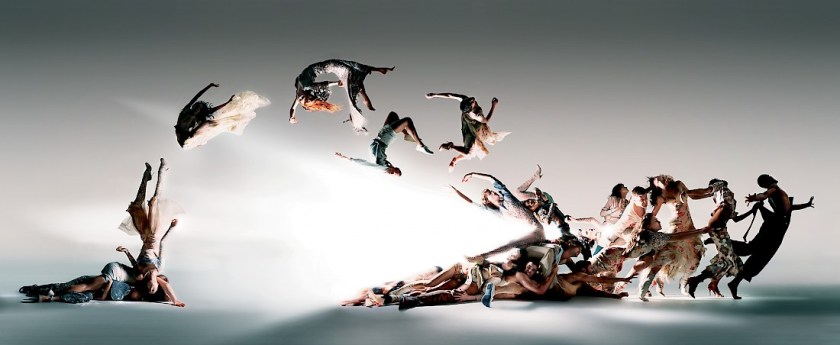
For this image, Knight used editing to remove the objects used within his photo to levitate his models during post-production. The photo was taken in sections and then layered together. Numerous props were used to form this photo, including suspended harnesses, stairs, and Perspex ramps.

This slideshow requires JavaScript.

Knight took his range of photos using high key lighting against a white backdrop which created a harsh high impact contrast between the models and the background. The colours in the photo were kept very minimal; Knight using only subtle coloured prints on the clothes of the models. The composition of the photo contains leading lines through the trail of bodies suspended across the shot.

This image was the outcome of Knight, Katy England, Michael Clark and Alexander McQueen collaborating together; the photo featuring clothing from the Deliverance collection from Spring/Summer 2004.

Clone Stamp 2 P5

I used the clone stamp, again, to create this edit; this involves copying certain areas of a photo onto other areas of the same, or a different, photo.

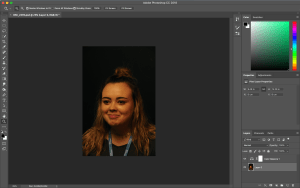
To start I opened the image I wanted to edit in photoshop.Screen Shot 2018-10-19 at 09.57.28

Secondly, I set the clone stamp tool to the size I wanted which was relatively small. I then proceeded to use the stamp to cover the dark under eyes, spots, and lines to smoothen out the face.

This is my finished edit, against my original image:

This is my favourite use of the clone stamp tool as it looks realistic and not overly edited. I have only removed the unwanted parts of the face, i.e. the dark circles under the eye.

To further edit this image I would use layer masks to add interesting shapes and colours into the face of the subject.

Clone Stamp 1 P5

I used the clone stamp to create the following edit; this involves copying certain areas of a photo onto other areas of the same, or a different, photo.

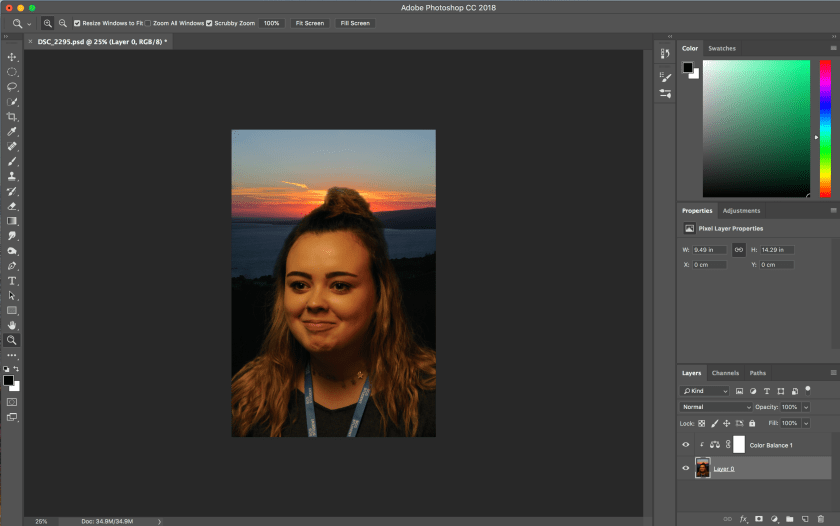
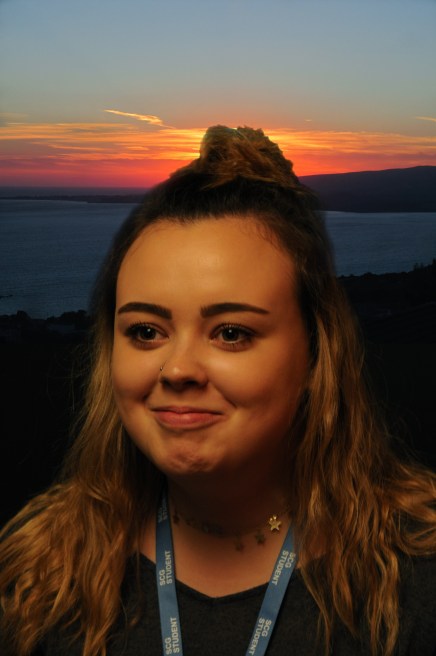
To begin I selected the image I wanted to change and opened it in photoshop. Next, I opened another photo of what I wanted to copy on another page. I also adjusted the colours of the portrait as well to eliminate the orange tones in the face.


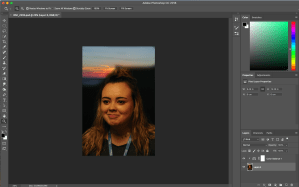
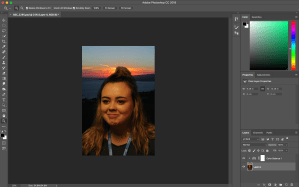
After opening both pages, I used the clone stamp tool, in a large size, to copy the sunset of one photo into the background of my selected portrait photo.

Following this, I used the tool again in the smallest size to fill in the spaces between the individual hairs sticking up.

Screen Shot 2018-10-19 at 09.54.29


This is my finished edit:

DSC_22955

I like this edit as it adds some interest and extra colour into the previously rather boring photo. However, I don’t like how the edit clearly looks fake. I wouldn’t select this edit as one of my best, although it is a good first try.

The edit used a background of a sunset taken during the summer, and a portrait shot indoors using low key lighting.

Layer Masks 3 P5

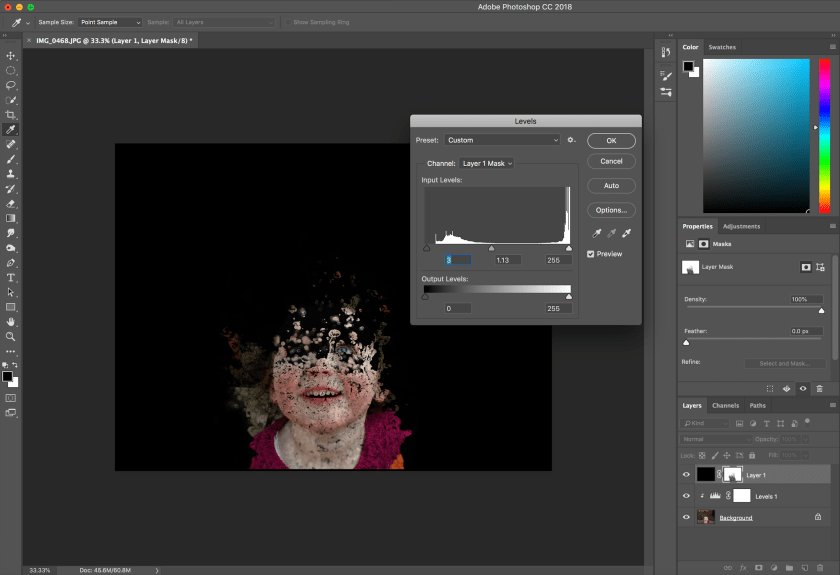
The third image I edited is my favourite, I began the process by selecting the image I wanted to edit and opening it in photoshop. After doing so I created a new layer and painted it black while setting the foreground colour to black.

The next thing I had to do was select the paint brush I wanted and ‘reveal’ the areas I wanted to be seen. The brush I used was ‘water splash 20’.

After revealing the areas, I used another paint brush and the levels adjustment to correct the areas of the face that needed filling in.

Screen Shot 2018-10-16 at 13.38.46

To then add a ‘watery effect’ to the image, I created a new layer and added a colour gradient it. To then make the colour only be seen on the original image, I changed the colour blend mode from ‘normal’ to ‘colour’.

I then added another layer mask onto this layer and used another brush to reveal parts of the original image from under the colour gradient.

This is my final edited image and my original:

The original image was taken outside during the late afternoon on an overcast day; it shows the use of vantage points and perspective angles. Also, the image provides a contrast between the bleak grey tone of the background and the colourful model.

This final edit is my favourite as the multitude of colours adds interest to the image and draws attention to the photo. Also, by adding another layer mask to remove the colour from the eye, the eye becomes the main focal point of the image, by standing out against the rest of the face.

However, I would have preferred for the eye to be slightly clearer and more up close.

Layer Masks 2 P5

I used the same process as my previous post to edit this image; whereby I selected the image I wanted to edit, created a new layer, and then painted it black after setting the foreground colour as black. I then added layer/vector mask to the new layer.

once again I selected the brush I wanted from the set I had downloaded, this was ‘crack rusty metal 15’. This brush allowed me to reveal part of the image below the black layer. After painting the original image into he black layer, selecting the levels adjustment allowed for the colours to be corrected in the image.

To make the image more interesting a colour gradient was added to the original layer by selecting the gradient, and setting it to ‘colour’ instead ‘normal’.

Then to draw attention to the focus of the image: the eye, I removed the colour from it using another brush.


This is my final image and the original:

This edit adds interest to an otherwise boring image. The colour layered onto the face causes the eye of the model to stand out. The pattern of the paint brush adds depth and texture to the photo.

While this is not my favourite edit, I prefer it to my first edit. I would have preferred for more of the models eye to be on show, which would draw focus to that area of the face more.

Layer Masks 1 P5

To edit the following images, I used layer masks in photoshop. To do this I first selected the image I needed to edit.1.png
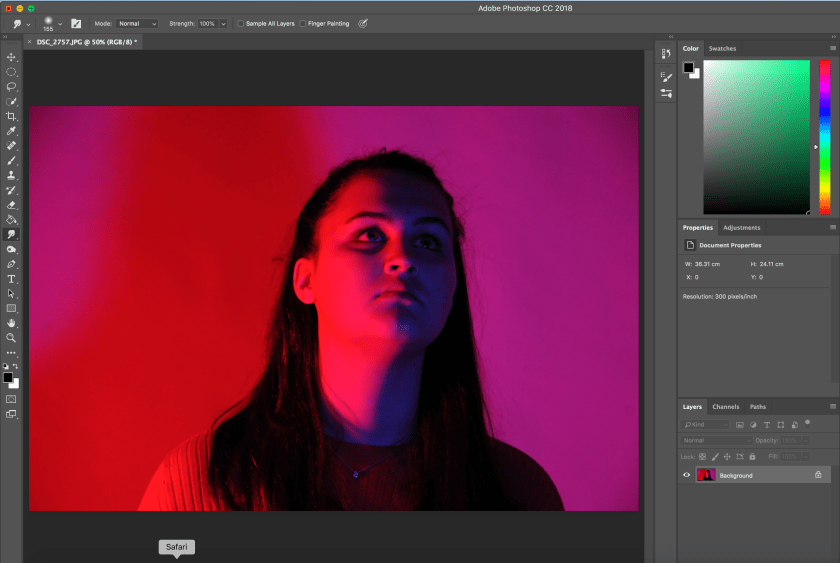
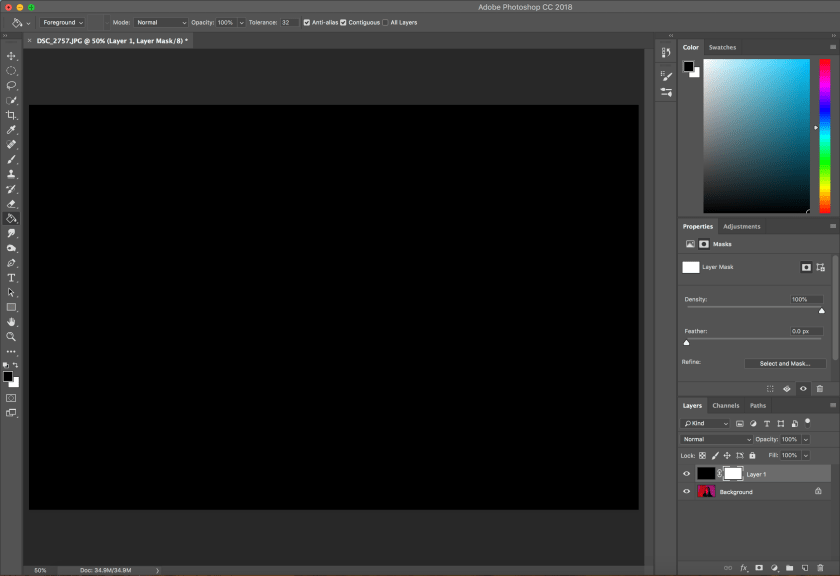
Secondly, I created a new layer, changed the foreground colour to black and used the paint bucket tool to drop the colour on the new layer. By doing this the new layer is no longer transparent, as shown below.
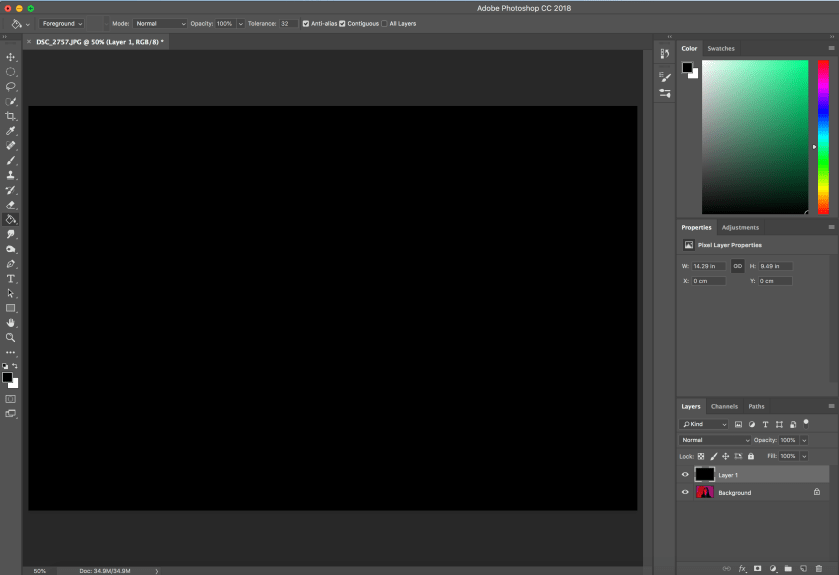
2

After this, while still selecting the layer, add a white layer mask using the layer mask button at the bottom of the layer panel.
3

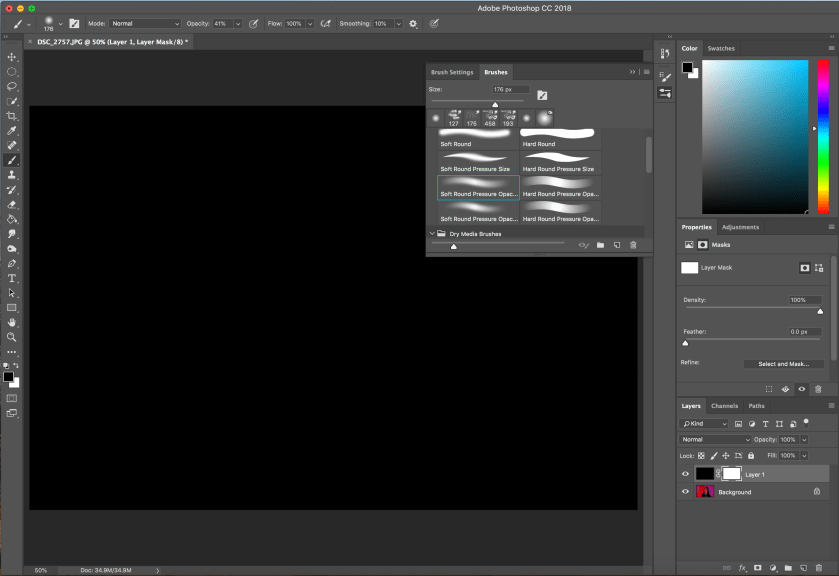
Next, I selected a brush to paint onto the layer mask, which will reveal the selected areas of the original photo.
4

After painting the areas of the photo that need to be revealed, the layer can be edited by selecting the levels adjustment bar. this can correct the quality of the image that may become degraded due to the use of the brush.

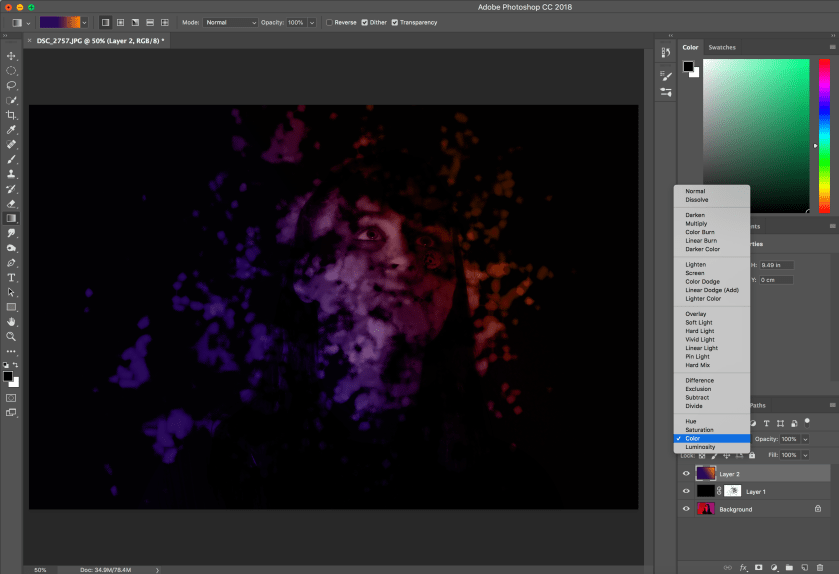
Next, I added another layer to change the colour tone of the image. To do this I used the gradient tool and then edited it to the colour wanted.

While still selecting this layer, I changed the blend mode of the layer from ‘normal’ to ‘colour’. This turned the colour of the original image to the colour of the layer.
9

This is the original and final image:


This edit used one of my coloured lighting images, this meant that the photo already had bright, artificial colours to it before my adding of a colour gradient. This layering of colours created interesting shades within the revealed areas of the photo. By revealing some areas of the photo at a higher opacity to others, the image appears as if it is slightly less developed in some places.

The photograph draws attention to the eyes of the subject as they are clearer than the rest of the subjects face. This image wasn’t my favourite edit as I would have preferred to used a different brush and for less of the face to have been revealed.